Desktop tutorial: work from the keyboard
Goal: run a whole session in the desktop app with your hands on the keyboard, which is what you want at the telescope with gloves on, or when a long run needs nothing but a start and a check.
Data: the two captures of the tutorials. The keys are the same for any data.
Before you start. This follows sorting a folder of frames: the boxes of Calibrate, Register and Stack are filled in.
Step 1: Find the keys
Press F1 or ? (the key that types a question mark on your keyboard). The list of every shortcut opens over the window.
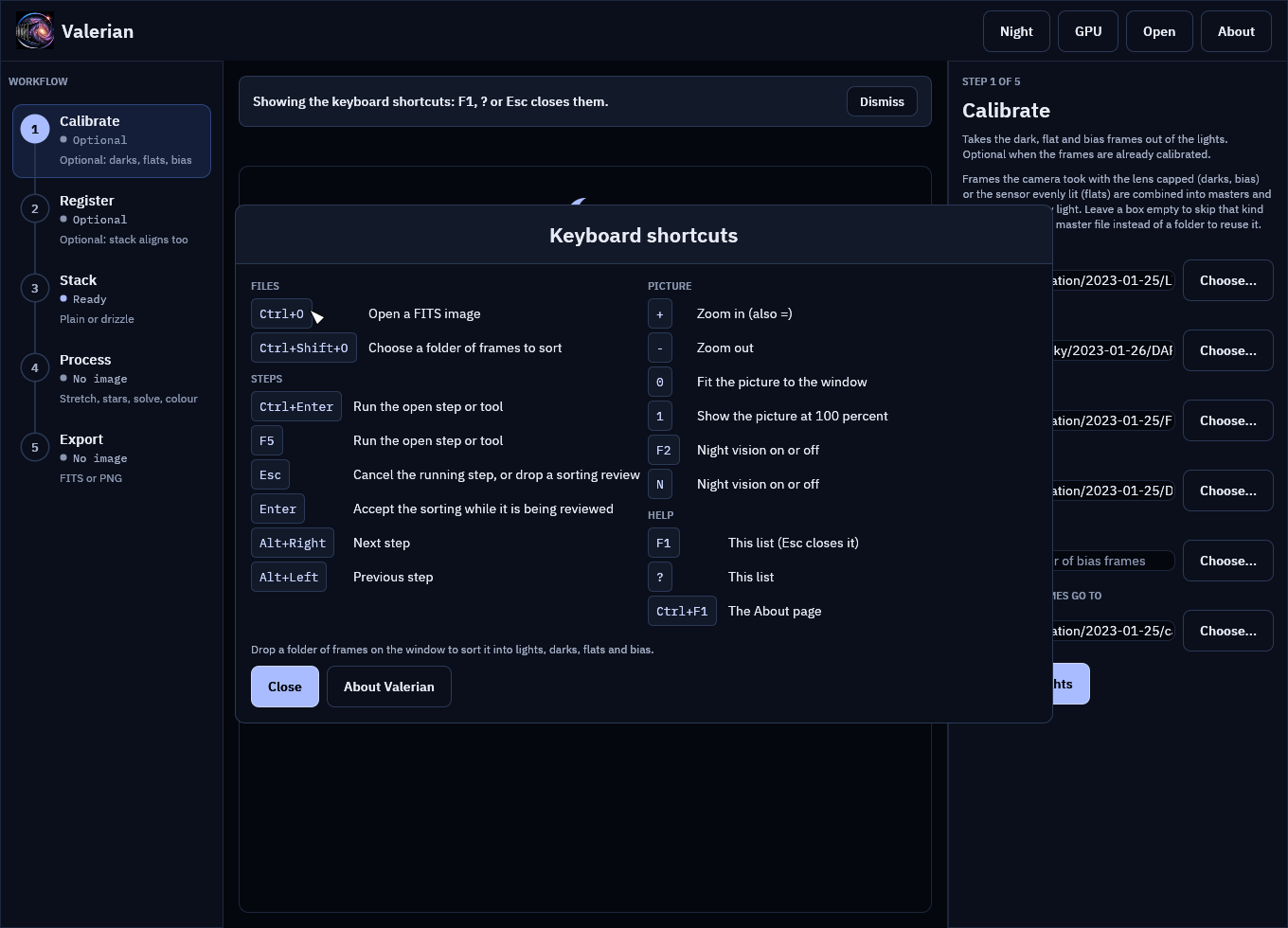
Press Esc, F1 or ? again, or the Close button, to put it away. About Valerian in the list opens the About page, which Ctrl+F1 also opens. The notice behind the list says what you did: Showing the keyboard shortcuts: F1, ? or Esc closes them. Every shortcut says what it did in that notice, so you never have to guess whether a key press registered.
Step 2: Open things
- Ctrl+O opens the file dialog for a FITS image. The notice says Choose a FITS image to open in the dialog.
- Ctrl+Shift+O opens the folder dialog for sorting. The review follows when you choose a folder. Enter accepts it and Esc drops it.
If a dialog is already open the notice says A file dialog is already open.
Step 3: Run a step
Ctrl+Enter (or F5) presses the open step's main button: Calibrate lights, Register frames, Stack frames, Drizzle frames, and in Process the open tool's own button (Apply and save, Remove stars, Solve, Calibrate colour), Export picture in Export. The step's own notice appears as if you had clicked: Calibrating the lights..., the frame count, the bar and the seconds.
If it cannot run it says why, in the error colour: Open an image first (Ctrl+O)., Name a folder of FITS frames first., Something is already running: Esc cancels it.
Step 4: Move on
Alt+Right goes to the next step and Alt+Left to the one before. The notice says where you are: Step 2 of 5: Register. At the ends it says Already at the last step: Export. or Already at the first step: Calibrate. The GPU benchmark is not a step: from there, click a step on the rail.
A whole session is then: Ctrl+Shift+O, choose the folder, Enter, Ctrl+Enter, Alt+Right, Ctrl+Enter, Alt+Right, Ctrl+Enter. When Stack finishes it opens the stack for Process.
Step 5: Stop a run
Esc does what the Cancel button in the notice does: it asks the running step (or the reading and gathering of a dropped folder) to stop. The notice says Cancelling: finishing the frame in hand, nothing will be kept... and then Cancelled: calibration stopped. Nothing from the run was kept. What a cancel leaves behind, and why, is in Cancelling a running step.
Esc with nothing to cancel does nothing, and says nothing.
Step 6: Look at the picture
With an image open, and no text box holding the keyboard:
| Key | Notice |
|---|---|
| + (or =) | Zoom 125 percent, and so on, by 25 percent a press |
| - | the smaller zoom |
| 0 | Fitted the picture to the window |
| 1 | Zoom 100 percent (of the preview) |
| F2 or N | Night vision on (F2 or N turns it off). |
With no image open, the zoom keys say Open an image to zoom it.
A note on typing
The path boxes are text boxes. While one has the keyboard, plain keys (N, ?, +, -, 0, 1, Enter) type into it as they should, and only the function keys and the chords (Ctrl, Alt) act. Click outside the box to give the keyboard back.
If it does not go as expected
A key does nothing. The About page or the shortcut list is open and covers the window: only help, About and Esc work then. Close it. Or a text box has the keyboard and the key is a plain one: see the note above.
Alt+arrows change nothing in the window of your desktop. Some Linux desktops use Alt+arrows for their own shortcuts and never pass them on. Click the steps on the rail instead; every shortcut has a button.
F1 opens the shortcuts, not the About page. Since this release it does: the About page is Ctrl+F1, or the logo, the name or About in the top bar. Every control and shortcut is in the reference.